Log a spend
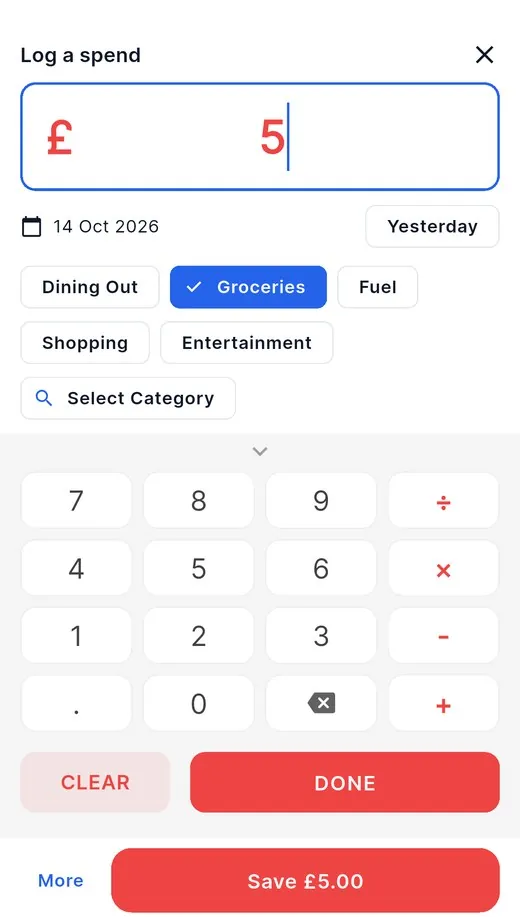
- Tap + on Today or Budget.
- Type the amount on the keypad.
- Tap a category, or Select Category.
- Tap Save.
Yesterday changes the date. Pin a favourite to log it in one tap; on a phone there is a Log a spend shortcut on the app icon too.
 Zeroed
Create a budget and lock it with a password only you know, add the account you spend from, then give every pound or dollar a job on the Budget tab until Ready to Assign reaches zero. Log each spend with +. The five tabs, Today, Budget, Accounts, Reports and Settings, hold everything else.
Set up in four steps
 1
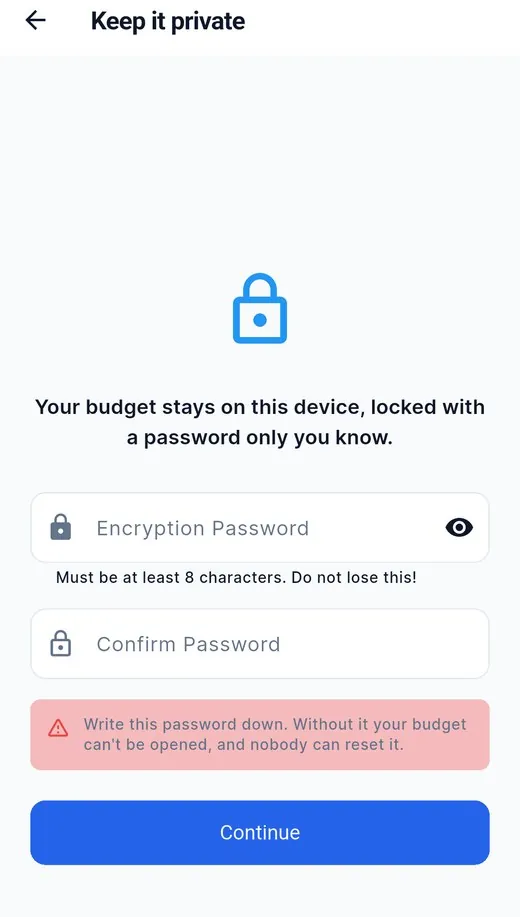
On the first screen tap New budget, then choose an encryption password of at least 8 characters. Your budget stays on this device, locked with it.
 2
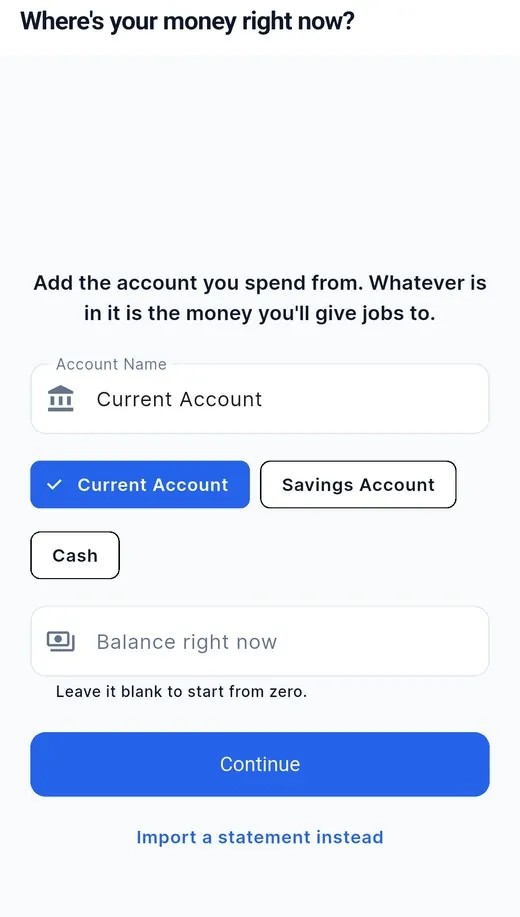
Name it, pick Current, Savings or Cash, and type what is in it right now (or leave it blank to start from zero). Have a statement file? Tap Import a statement instead.
 3
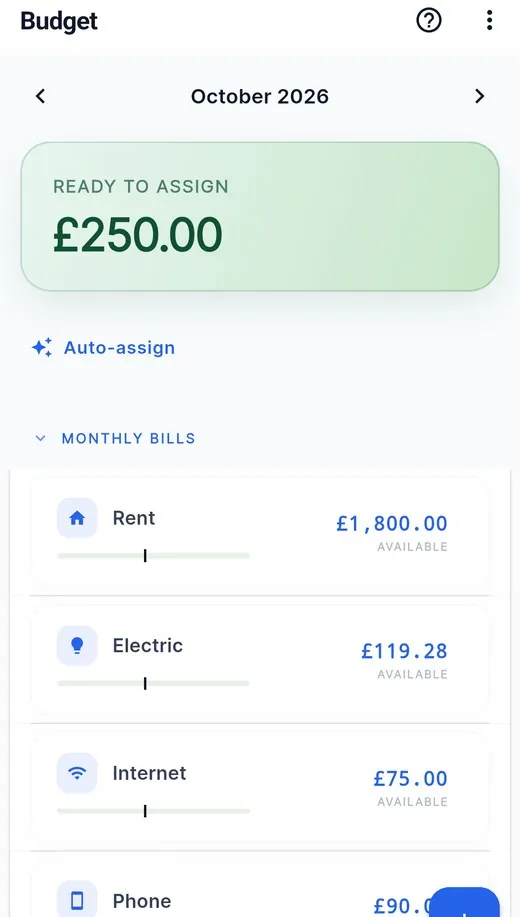
Ready to Assign is money without a job yet. On Budget, tap a category and choose how much it gets; keep going until Ready to Assign reaches zero. Auto-assign can do a first pass.
4 Tap + to Log a spend: type the amount, tap a category, Save. Or import your bank's statement once a month and let Zeroed fill it in.
Write it down. Your password is the only key. Without it the budget can't be opened, and nobody can reset it: not even us.
34 days free. Every feature is unlocked for your first 34 days, with no card. Afterwards Zeroed stays readable and exportable; one payment keeps it unlocked, with no subscription.
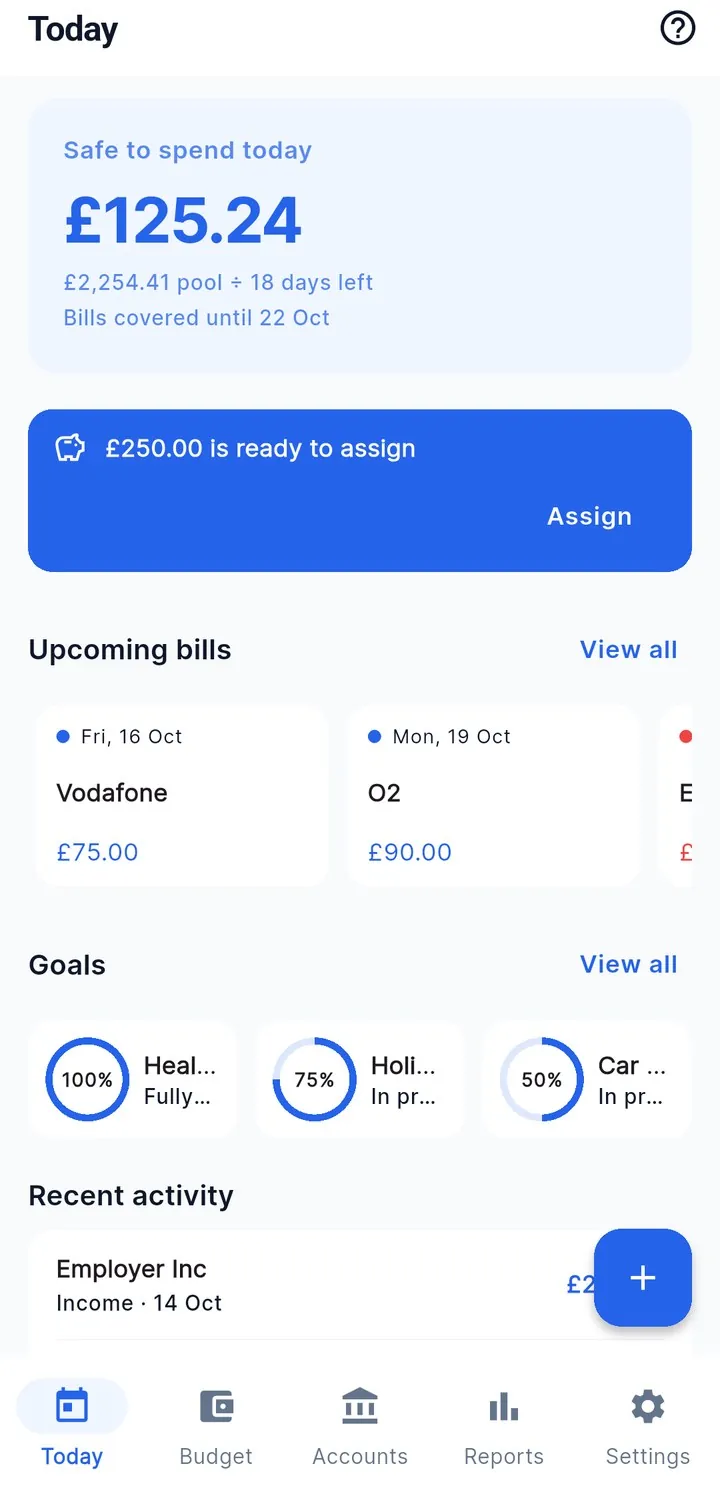
Find your way
They sit along the bottom of a phone, or down the left side of a tablet or computer.
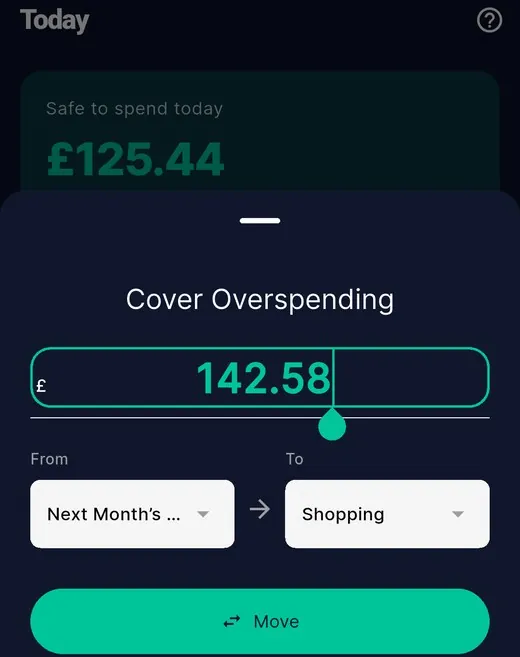
| Budget | This month's plan: Ready to Assign at the top, then your categories in groups, each with what is available. ‹ › change month; the ⋮ menu has Move Money. |
|---|---|
| Accounts | Your net worth and every account. Open one for its transactions, and the buttons to Import a statement, Reconcile with the bank or Export CSV. |
| Reports | Overview, Cash Flow and Spending, for any dates and accounts; a 30-day forecast and your net-worth trend. |
| Settings | Your licence, Google Drive Sync, sharing with your household, accounts, categories, payees, import rules, recurring transactions, backups, exports, Migrate from YNAB, security and preferences. |
Everyday
Yesterday changes the date. Pin a favourite to log it in one tap; on a phone there is a Log a spend shortcut on the app icon too.
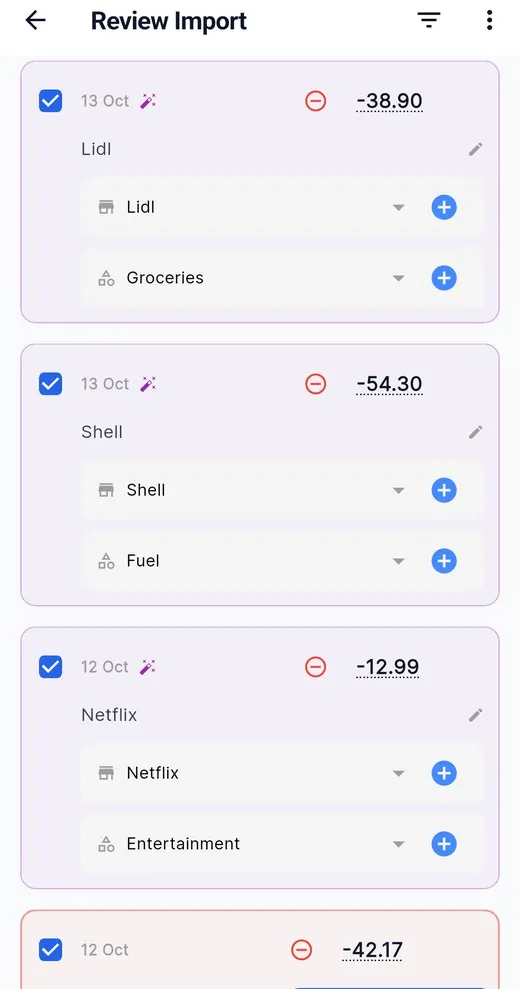
Duplicates are filtered out automatically.
Any time: Budget → ⋮ → Move Money.
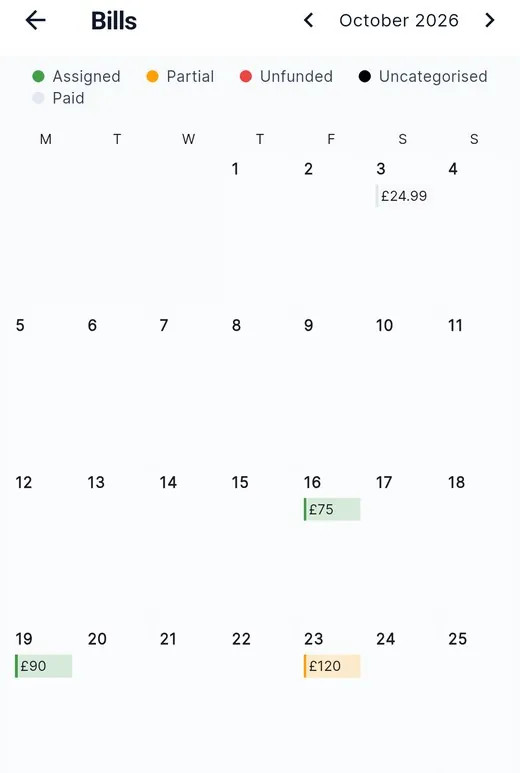
Reconcile. Once a month, match an account to your bank: Accounts → the account → Reconcile, type the statement balance, and Zeroed shows the difference. It can add a balancing adjustment that you can delete later.
Keep it yours
Nobody can reset it, not even us. About once a month Zeroed asks for it, so it stays fresh in your memory. On a phone, Settings → Security → Biometric Unlock lets your face or fingerprint open it day to day.
Settings → Backups: automatic daily or weekly copies, Back up now, Save a copy elsewhere and Restore from a file. Zeroed also keeps a copy before any update that changes the file format.
Optional. Settings → Google Drive Sync keeps a copy in your own Drive, encrypted on your device before it is uploaded. Zeroed can only see the files it creates there.
Settings → Export full budget: everything, as one zip you own. Each account can also Export CSV. After the trial, exporting still works.
Bought Zeroed on another device? Settings → Activate License Key. Your licence and your budget are separate: syncing the budget is its own choice.
Settings → Migrate from YNAB brings accounts, categories, assignments and history across from a YNAB export.
No. The password is the only key to your encrypted budget, so nobody can reset it, not even Stillware. Write it down when you create the budget; Zeroed asks for it about once a month so you remember it.
Either turn on Google Drive Sync in Settings on both devices, or use Settings → Backups → Save a copy elsewhere on the old device and Restore from a file on the new one. You need your password either way.
Accounts → open the account → Import. Zeroed reads CSV, OFX, QFX, QIF, PDF and ZIP files, shows every row in Review Import, and filters out duplicates.
Every feature is unlocked for the first 34 days, with no card. Afterwards Zeroed becomes read-only: you can still browse and export everything. One payment keeps it unlocked, with no subscription.
Every tab has a ? in its top bar that explains that screen. On Budget it opens the Quick Start Guide.
The same guide as a 4-page A4 PDF, with the screens and an "I want to… → Go to" table.
Hear when Zeroed changes
One email when a new version ships or this guide changes, one free budgeting printable or calculator, and one reminder before the founder price ends.
At most once a month. No tracking pixels. Leave in one click. What you'll get
Checked against Zeroed 1.7 on 31 October 2026. Source: the app itself; the screens are real captures from versions 1.7.1 and 1.7.2 with a demo budget, unedited. Still stuck? support@stillwareltd.com. All guides and help.